 Qply
Qply
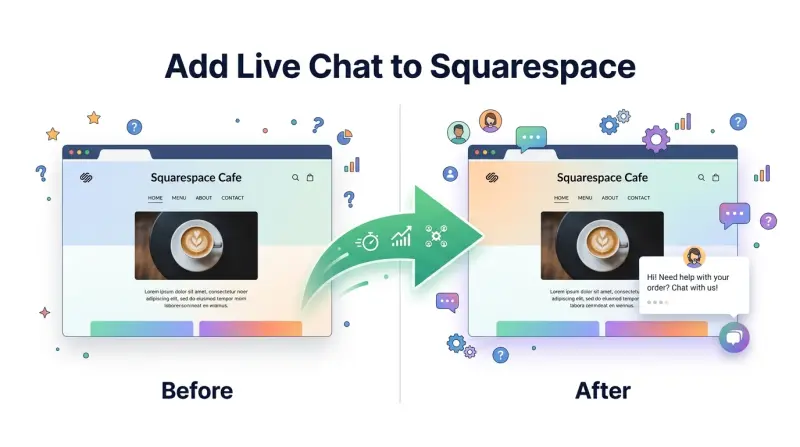
5 Best Live Chat Apps for Squarespace in 2026
Squarespace is one of the most popular website builders in the world — beautiful templates, reliable hosting, and an intuitive editing experience that requires no coding knowledge. But there's a glaring gap in its feature set: Squarespace has no native live chat. If you want to talk to visitors in real time, answer questions before they bounce, or let an AI handle queries around the clock, you need a third-party tool.
The good news is that adding live chat for Squarespace is surprisingly straightforward. Squarespace's Code Injection feature lets you paste a small script into your site's global header, which loads any JavaScript-based chat widget on every page — no plugins, no developer needed. In this guide, we cover the 5 best live chat tools that work with Squarespace in 2026, and walk through exactly how to install each one.
Why Squarespace Has No Built-In Live Chat
Squarespace's philosophy is intentional simplicity — they build features that work for the broadest possible user base without overwhelming the interface. Live chat, with its complexity around AI training, agent routing, and integration requirements, falls outside that scope. Squarespace officially recommends third-party integrations for chat functionality, and Code Injection is the mechanism they provide for this purpose.
The lack of native chat isn't necessarily a problem — it just means choosing a dedicated tool that does the job far better than a built-in feature ever would. Dedicated live chat platforms invest their entire engineering team in making chat work well; that specialization shows in the quality of the tools below.
Squarespace's Code Injection (found at Settings → Advanced → Code Injection) lets you add custom HTML and JavaScript to every page on your site, without editing individual pages. Any script you add to the Header Injection field loads globally. This is how all the tools in this list are installed on Squarespace.
Is There a Squarespace Live Chat Plugin?
Unlike WordPress, Squarespace doesn't have a traditional plugin marketplace, so there's no "live chat plugin" you install from an app store. Instead, every Squarespace live chat plugin works the same way: it's a small JavaScript snippet you add through Code Injection. Functionally it behaves exactly like a plugin — it adds a chat widget to every page — but it installs in seconds and never needs updating, because the tool's servers handle all the logic. So when people search for a "Squarespace chat plugin" or "live chat plugin for Squarespace," what they actually need is one of the script-based tools below. Qply, Tidio, Crisp, tawk.to, and Smartsupp all install this way.
The 5 Best Live Chat Tools for Squarespace
1. Qply — Best Overall for Squarespace (Our Top Pick)
Qply is an AI-native live chat platform that's purpose-built to be embedded on any website — including Squarespace — via a single lightweight script tag. You train Qply on your content (FAQs, product descriptions, service pages, help articles), and it uses RAG-powered AI to answer visitor questions automatically, 24/7, without you needing to be at your desk.
For Squarespace users specifically, Qply is a natural fit for several reasons. First, the widget is designed to complement clean, design-forward sites — it's fully customizable in terms of color, position, greeting message, and avatar, so it won't clash with your Squarespace template. Second, the script is small and asynchronous, meaning it doesn't slow down your Squarespace page load scores. Third, when a visitor needs to speak to a human, Qply escalates seamlessly and sends you an email or app notification.
- Pros: AI included, flat-rate pricing, lightweight script, full widget customization, human escalation built in
- Cons: Fewer native integrations than older tools (growing), no built-in email marketing
2. Tidio — Good for Squarespace E-commerce
Tidio is a popular live chat tool with a visual chatbot builder and a Lyro AI feature that handles basic customer service questions. It works well on Squarespace via Code Injection and is particularly suited to Squarespace-based stores using their Commerce feature. Lyro AI has a conversation limit on lower plans, so if you expect heavy traffic, check that the plan you choose covers your volume.
- Pros: Good bot builder, works on Squarespace Commerce, clean widget
- Cons: AI conversation limits on entry plans, widget can feel heavy, per-seat pricing on higher tiers
3. Crisp — Good for Portfolio and Service Sites
Crisp's free plan supports 2 agents and unlimited conversations, making it a solid option for freelancers or small service businesses running a Squarespace portfolio or agency site. The widget is clean and unobtrusive, which matters for design-focused Squarespace users. AI features are limited to response suggestions, so it's better suited to sites where a human will actively monitor the chat than to sites that need 24/7 automated answering.
- Pros: Free tier for 2 agents, minimal widget footprint, easy to set up via Code Injection
- Cons: Limited AI, per-seat pricing on paid plans, basic reporting
4. tawk.to — Best Free Option for Squarespace
tawk.to is completely free and installs on Squarespace in under two minutes via Code Injection. It's a purely human-operated chat tool — no AI, no automation — but for small businesses that want to be available to site visitors during business hours, it delivers exactly what's needed at zero cost. The mobile app lets you respond to chats from your phone, which is handy for solo operators running a Squarespace site.
- Pros: Completely free, fast setup, good mobile app, lightweight widget
- Cons: No AI or automation, requires a human to be available, limited analytics
5. Smartsupp — Good for Squarespace with Video Recording
Smartsupp is a lesser-known but capable live chat tool that includes a unique feature: visitor recording. You can watch anonymized video replays of how visitors interact with your Squarespace site — useful for understanding where users get confused. It has a free tier for one agent and basic AI on paid plans. If user behavior analytics alongside chat is a priority, Smartsupp is worth considering.
- Pros: Visitor recording feature, free tier available, solid mobile apps
- Cons: AI is limited, free tier is single-agent only, smaller community than competitors
How to Add Live Chat to Squarespace: Step-by-Step Guide for Qply
The following steps walk you through installing Qply on your Squarespace site. The same general process applies to any of the tools above — the only difference is the script snippet provided by each tool's dashboard.
- Sign up for Qply — Go to qply.io/app/signup and create your account. Start your 14-day free trial instantly.
- Create your workspace — After signing in, create a new workspace for your Squarespace site. Give it your site name and choose your widget color to match your Squarespace template.
- Train your AI — Go to the Knowledge Base section and add your FAQs, service descriptions, and any other content you want the AI to use when answering visitor questions. You can paste text directly, add URLs to crawl, or upload documents.
- Copy your widget script — In the Qply dashboard, go to Settings → Widget → Install. You'll see a small JavaScript snippet that looks like:
<script src="https://qply.io/widget/YOUR_ID.js" async></script>. Copy the entire snippet. - Open Squarespace Settings — Log in to your Squarespace account and go to your site editor. In the left-hand panel, click Settings.
- Navigate to Code Injection — In Settings, scroll down to the Advanced section and click Code Injection.
- Paste your Qply script — In the Header field (not Footer), paste the Qply script snippet you copied in Step 4. Click Save.
- Preview your site — Open your Squarespace site in a new browser tab (or use Preview mode). You should see the Qply chat widget appear in the bottom-right corner within a few seconds.
Squarespace's Code Injection is available on Business plans and above. If you're on a Personal plan, you'll need to upgrade to use Code Injection and add live chat to your site. The Business plan is the minimum required for any third-party script integration.
Customizing Your Qply Widget for Squarespace
One concern Squarespace users often raise is whether a third-party chat widget will clash with their carefully designed site. Qply's widget customization makes this easy to manage:
- Color: Match your brand colors exactly by entering your hex code in the widget settings.
- Position: Choose bottom-right or bottom-left positioning to avoid covering important elements in your Squarespace layout.
- Greeting message: Set a custom welcome message that fits your brand voice — professional, friendly, or playful.
- Avatar: Upload your logo or a team photo as the chat avatar for a more personal feel.
- Launcher size: Adjust the size of the chat button to suit your site's visual balance.
All customization changes apply instantly without needing to update your Squarespace Code Injection — the widget reads its configuration from Qply's servers each time it loads.
Which Live Chat Tool is Best for Your Squarespace Site?
The right tool depends on your site type and how you want chat to work:
- Portfolio or service site (1-2 person team): Start with Crisp (free) or tawk.to (free). If you want AI to answer while you sleep, switch to Qply.
- Squarespace Commerce store: Tidio or Qply — both handle e-commerce questions well, but Qply's AI covers a broader range of queries without per-conversation limits.
- High-traffic content or media site: Qply's AI handles volume without scaling costs, making it the most economical choice as traffic grows.
- Agency or consultant site where user behavior insight matters: Smartsupp's visitor recording feature adds valuable UX data alongside chat.
For most Squarespace sites, Qply delivers a strong combination of AI capability, design compatibility, and predictable pricing. And if you're also managing a WordPress site, our live chat for WordPress guide covers the same comparison for that platform.
Frequently Asked Questions
Does Squarespace have built-in live chat?
No. Squarespace does not have native live chat. You need a third-party tool installed via Squarespace's Code Injection feature (Settings → Advanced → Code Injection). Tools like Qply, Tidio, Crisp, and tawk.to all install this way in under 5 minutes.
How do I add live chat to Squarespace?
Go to your Squarespace dashboard → Settings → Advanced → Code Injection. Paste your live chat provider's script tag into the Header field and click Save. The widget will appear on every page of your site. With Qply, you copy the script from your dashboard and it takes under 2 minutes.
Is there a free live chat for Squarespace?
Yes. tawk.to is completely free with no seat limits and installs on Squarespace via Code Injection. Crisp also has a free plan supporting 2 agents. Neither includes AI auto-answering on the free tier — for that, Qply offers a 14-day free trial starting at $12/month.
Will adding live chat slow down my Squarespace site?
A well-built live chat widget loads asynchronously and has minimal impact on page speed. Qply's widget is under 15KB and loads after the page renders, so it does not affect your Squarespace Lighthouse score or Core Web Vitals.
Does live chat work on Squarespace Commerce?
Yes. Any live chat tool installed via Code Injection loads on all Squarespace pages including product pages, cart, and checkout. Qply and Tidio are both well-suited for Squarespace Commerce stores, with AI that can answer product and order questions automatically.
Is there a Squarespace live chat plugin?
Squarespace doesn't use a traditional plugin marketplace, so a "Squarespace live chat plugin" is really a JavaScript snippet you add via Code Injection. It behaves exactly like a plugin — adding a chat widget to every page — but installs in seconds with no updates to manage. Qply, Tidio, Crisp, and tawk.to all work this way.
Which Squarespace plan do I need for live chat?
You need a Squarespace Business plan or higher, because Code Injection — the feature used to add any live chat script — isn't available on the Personal plan. Once you're on Business or a Commerce plan, you can add Qply or any script-based chat tool in under 5 minutes.
Add AI live chat to your Squarespace site today
One script tag. 10-minute setup. AI that answers questions 24/7.
Start 14-day free trial →