 Qply
Qply
How to Add Live Chat to Webflow (Step-by-Step 2026)
Webflow is the platform of choice for designers, developers, and agencies who want pixel-perfect control over their websites without writing everything from scratch. But one thing Webflow doesn't include out of the box is live chat. There's no native chat widget, no built-in customer messaging, and no AI-powered support bot — and that's actually fine, because Webflow's clean Custom Code injection system makes it trivially easy to add any third-party chat tool in minutes.
This guide explains why Webflow has no native chat, which tools work best for Webflow sites, and walks you through the exact steps to add Qply — our top recommendation for agencies and developers — using Webflow's Custom Code section.
Why Webflow Has No Native Live Chat
Webflow is a design and publishing platform, not a customer support platform. Its philosophy is to do one thing exceptionally well — give designers control over the web — and let the broader ecosystem handle everything else via integrations. Unlike Wix or Squarespace, Webflow doesn't have an app marketplace in the traditional sense. Instead, it gives developers powerful tools to embed anything: custom HTML, external scripts, and third-party code snippets.
This is actually an advantage. Because Webflow doesn't lock you into its own chat product, you're free to choose the live chat tool that best fits your specific needs — and installing it takes less than five minutes using the Custom Code feature.
Custom Code injection (via Project Settings → Custom Code) is only available on Webflow's paid site plans — Basic and above. If you're on the free Webflow plan, you'll need to upgrade before you can inject a chat script globally across your site. Alternatively, you can use a Webflow Embed component on individual pages, which is available on free plans.
How to Add Live Chat to Webflow: Step-by-Step (Qply)
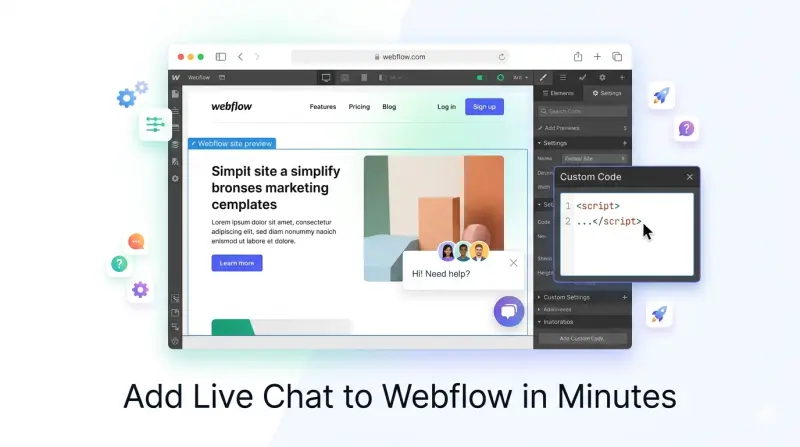
The cleanest way to add live chat to a Webflow site is via the Custom Code tab in Project Settings. This injects your script into every page of the site automatically — no need to add it page by page. Here's the full process:
- Create your Qply account. Go to qply.io/app/signup and sign up. Complete the workspace setup — name your workspace, set your brand color, and configure your welcome message. This takes about 2 minutes.
- Get your embed script. In the Qply dashboard, navigate to Settings → Widget → Install. You'll see a short
<script>tag with your unique workspace ID. Copy it to your clipboard. - Open your Webflow project. Log in to Webflow and open the Designer for the site you want to add chat to.
- Go to Project Settings. Click the Webflow logo in the top-left corner, then select Project Settings from the dropdown menu.
- Open the Custom Code tab. In Project Settings, click the Custom Code tab. You'll see three injection zones: Head Code, Body (Start), and Body (End). Paste your Qply script into the Footer Code (Body End) field. This is the correct location for chat widgets — it ensures the page content loads before the chat script runs.
- Save and publish. Click Save Changes, then return to the Designer and click Publish → Publish to webflow.io (or your custom domain if you have one connected). The Qply widget will now appear on every page of your Webflow site.
- Build your knowledge base. In Qply, go to Knowledge Base and add content — your FAQs, service descriptions, pricing, or any documentation your visitors commonly ask about. The AI uses this content to answer questions accurately. For best results, add at least 15–20 articles or FAQ entries before going live.
- Test on your live site. Open your published Webflow site in a new browser tab and verify the chat widget appears in the correct position. Send a test message to confirm the AI responds correctly.
If you want live chat to appear on only certain Webflow pages — for example, your pricing or contact page but not your blog — use the Embed component instead of Custom Code. In the Webflow Designer, add an HTML Embed element to the specific page and paste your Qply script there. This gives you granular control over where the widget appears.
4 Other Live Chat Options for Webflow
Qply is our top recommendation, but there are other capable tools that integrate well with Webflow. Here's how they compare:
Tidio — Good for Marketing-Focused Sites
Tidio offers a visual chatbot builder that doesn't require a developer to configure. For Webflow sites that want automated booking or quote-request flows — e.g., "Book a call" or "Get a quote" bots — Tidio's drag-and-drop bot editor is genuinely easy to use. Installation is via script embed in Webflow Custom Code, same as Qply. The Lyro AI assistant handles FAQ-style questions reasonably well, though it's capped on lower plans.
- Visual chatbot builder — no coding
- Combines chat and email marketing
- Free plan available
- AI conversation limits on lower tiers
- Can feel heavy for simple Webflow sites
Crisp — Best Free Option for Webflow
Crisp's free plan offers up to 2 agents and unlimited conversations — a popular zero-cost chat option for Webflow freelancers and small agencies. Setup is a single script embed, and the inbox is clean and easy to use on both desktop and mobile. If your Webflow site is relatively simple and you primarily want a human chat inbox at no cost, Crisp is excellent.
- Free tier is genuinely usable
- Clean operator inbox and mobile app
- Easy Webflow script embed
- AI features minimal on free plan
- Pricing scales sharply with team size
Intercom — Enterprise Option for Webflow
Intercom is the most feature-complete customer messaging platform available, and it integrates with Webflow via script embed just like any other tool. If you're building a Webflow site for an enterprise client that needs omnichannel messaging, a mature help center, and Salesforce integrations, Intercom may be worth the cost. For most Webflow projects, however, it's over-engineered and over-priced. For a detailed comparison, see our.
- Most mature feature set in the industry
- Strong enterprise integrations
- Reliable and battle-tested
- Expensive — often $500–$1,000+/month
- Heavy widget script impacts page speed
- Overkill for most Webflow use cases
Tawk.to — Best Free Human Chat for Webflow
Tawk.to is completely free and works on Webflow via script embed. If your Webflow client or project simply needs a human-monitored chat presence with zero budget, tawk.to delivers. There's no AI and no automation — you need a person watching the inbox — but as a free, lightweight option for human chat, it's hard to argue against it.
- 100% free forever
- Lightweight — minimal page speed impact
- Quick Webflow setup via script embed
- No AI, no automation, no chatbot
- Requires a human operator to function
Best Choice for Webflow Agencies and Developers
If you're a Webflow agency or freelance developer adding live chat to client sites, you have specific requirements that differ from typical end-users:
- Fast setup across multiple client projects. You need a tool you can configure and hand off quickly — not one that requires hours of onboarding per client.
- White-label or brand customization. Your client's chat widget should look like their brand, not the chat vendor's.
- Predictable pricing your client can manage. Per-seat or per-resolution pricing models are difficult to forecast for clients. Flat-rate tools are easier to scope into a project budget.
- AI that reduces ongoing support overhead. A client who needs to manually monitor a chat inbox every day will push that back onto you eventually. An AI that handles 70–80% of queries automatically means fewer support calls about the chat tool itself.
On all four criteria, Qply is the strongest fit for agency work. The widget customization maps directly to client brand guidelines, the flat-rate pricing is easy to include in a monthly retainer, and the AI's knowledge base can be pre-loaded with the client's FAQ content before handoff.
You can manage multiple client workspaces from a single Qply account. Each workspace has its own knowledge base, widget configuration, and conversation inbox — making it straightforward to set up chat for multiple Webflow clients without mixing data. Set up the workspace, train the AI on the client's content, hand over credentials, and you're done.
Webflow Performance Considerations
Webflow sites are often built with performance in mind — clean code, optimized images, and minimal third-party scripts. Adding live chat introduces an external script dependency, so it's worth understanding the performance implications:
- Load position matters. Always place chat scripts in the footer (Body End) of your Webflow Custom Code, not in the Head. Head scripts block page rendering; footer scripts load after the page is already visible.
- Async loading is standard. All reputable chat tools load their scripts asynchronously, meaning they don't block the browser's main thread. Qply's script is designed this way — it won't delay your Webflow site's Time to Interactive metric.
- Test with Lighthouse. After adding any chat widget, run a Google Lighthouse audit on your published Webflow site. If you see a significant drop in Performance score, consider a lighter-weight option. Qply's widget has a minimal footprint by design.
For a broader look at how AI chat can reduce the volume of support work on any website, including Webflow sites, read our guide on reducing support tickets with AI.
The Bottom Line
Webflow's lack of native live chat is not a limitation — it's an invitation to choose the tool that best fits your needs. The Custom Code injection system makes adding any chat widget fast and clean, with no plugin dependencies or App Market constraints to worry about.
For most Webflow sites — whether you're a solo developer, a design agency, or a business owner who built their own site — Qply is a strong choice. It combines genuine AI automation with fast setup, a lightweight embed, and pricing that stays predictable as you grow. You can be live in under five minutes and have your AI trained and answering questions within the hour.
Add live chat to your Webflow site with Qply
One script. AI-powered answers. Flat-rate pricing. Ready in minutes.
Start 14-day free trial →