 Qply
Qply
5 Best Live Chat Plugins for WooCommerce Stores (2026)
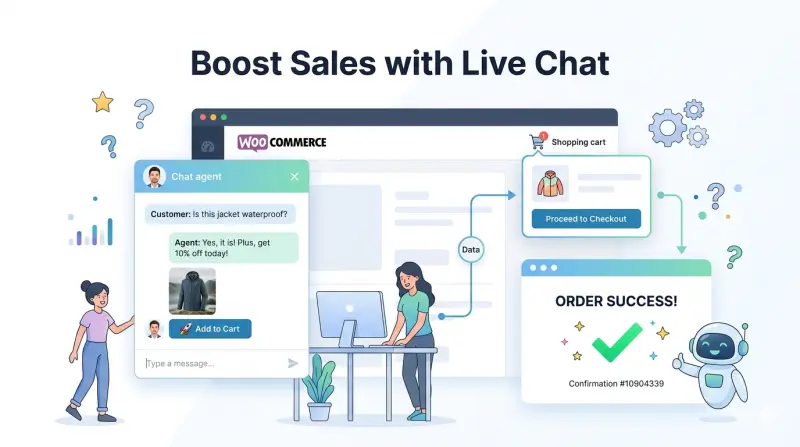
You've built a WooCommerce store, invested in traffic, and watched visitors arrive — but a meaningful percentage leave without buying. Some get stuck on a product question. Some want to know when their order will arrive. Some are seconds away from checkout and just need one reassurance before they commit. Live chat for WooCommerce is the direct line between you and those potential sales.
In this guide we'll cover why live chat is especially impactful for WooCommerce stores, how to install Qply on your WordPress site in under 10 minutes, and the 5 best live chat options available in 2026 — with honest pros and cons for each.
Why WooCommerce Stores Need Live Chat
WooCommerce powers over 7 million online stores worldwide. Unlike SaaS products, ecommerce sites face a specific set of customer questions that, if left unanswered, reliably kill conversions:
- Cart abandonment. The average ecommerce cart abandonment rate hovers around 70%. A significant fraction of those abandonments happen because a shopper had a question — about sizing, shipping costs, return policy, or compatibility — and no fast way to get an answer. A well-placed live chat widget can answer those questions in real time and turn hesitation into completed orders.
- Product questions before purchase. "Does this come in a larger size?" "Is this compatible with X?" "What's the material?" These are questions that email handles poorly — the customer has already left by the time you reply. Live chat and AI chat answer them in real time, while the intent to buy is still alive.
- Order tracking and post-purchase anxiety. "Where is my order?" is one of the most common customer service queries for any ecommerce store. An AI that can handle this question automatically — or point customers to their tracking link instantly — frees your team from repetitive work and keeps customers happy.
- Reducing returns through better pre-purchase guidance. When customers get accurate information before they buy, they make better purchase decisions and return fewer items. Live chat is a direct investment in lower return rates.
The data backs this up: stores that add live chat consistently report 15–30% higher conversion rates on pages where the widget is present and responsive. For stores running on thin margins, that uplift is the difference between a profitable quarter and a break-even one.
Don't just activate chat site-wide. Prioritize your product pages, cart page, and checkout page first — these are where purchasing intent is highest and where a timely response has the most impact on revenue. You can configure page-specific display rules in most live chat tools including Qply.
How to Install Qply on Your WooCommerce Store
Qply works on any website that lets you add a small JavaScript snippet — which includes every WooCommerce / WordPress installation. There are two clean ways to add it:
Method 1: Theme Editor (Fastest)
This method takes under 5 minutes and requires no plugins.
- Log in to your WordPress admin dashboard.
- Go to Appearance → Theme Editor.
- In the right-hand file list, click on Theme Header (header.php).
- Find the closing
</head>tag near the bottom of the header section. - Paste your Qply embed snippet immediately before
</head>. - Click Update File.
Your Qply widget will appear on every page of your store within seconds. If you're using a block theme (like Twenty Twenty-Four), use the Full Site Editor instead: Appearance → Editor → Templates → All Templates → edit your header template and add a Custom HTML block with the snippet.
Method 2: Header & Footer Plugin (Recommended for Non-Developers)
If you're not comfortable editing theme files directly, the "Insert Headers and Footers" plugin (free, 1M+ active installs) provides a safe, theme-independent way to add scripts:
- Install and activate "Insert Headers and Footers" from the WordPress plugin directory.
- Go to Settings → Insert Headers and Footers.
- Paste your Qply snippet into the Scripts in Header field.
- Click Save.
This method survives theme updates and doesn't require touching any PHP files. It's the recommended approach for store owners who update their themes regularly.
After signing up, go to your Qply dashboard → Settings → Widget → Install. Copy the one-line JavaScript snippet shown there. It's under 500 bytes and loads asynchronously, so it will never slow down your WooCommerce store's page speed scores.
5 Best Live Chat Tools for WooCommerce in 2026
1. Qply — Best AI Live Chat for WooCommerce (Our Top Pick)
Qply is a strong fit for WooCommerce stores that want AI to handle the majority of customer questions automatically — without a per-seat pricing model that penalizes growth. You train Qply's RAG-powered AI on your product catalog, shipping policy, FAQ pages, and return policy. From that point, it answers product questions, shipping queries, and return requests accurately and instantly — 24 hours a day, with zero agent time required for routine questions.
When a question genuinely requires human judgment — a complex return situation, a custom order request — Qply escalates to a human agent with full conversation context already in place. The widget is fully customizable to match your store's branding, and the flat-rate pricing model means your chat costs don't spike unpredictably during peak periods like Black Friday.
Installation on WooCommerce takes under 10 minutes using either of the methods described above. No dedicated WordPress plugin is required — the lightweight JavaScript snippet works with any theme, page builder, or caching setup.
- Pros: AI included on all plans, flat-rate pricing (no surprise bills during traffic spikes), lightweight widget, RAG knowledge base, works with any WordPress theme, 10-minute setup
- Cons: No native WooCommerce plugin in the plugin directory (install via script), fewer built-in integrations than Tidio's ecommerce-specific features
2. Tidio — Best WooCommerce Plugin with Native Integration
Tidio is purpose-built for ecommerce and has a dedicated WooCommerce plugin that connects your store data directly to the chat interface. Agents and the AI bot can see what's in a visitor's cart, their order history, and their browsing behavior — context that makes conversations more useful.
Tidio's "Lyro" AI agent is capable and handles a solid range of customer questions autonomously. The chatbot builder has pre-built ecommerce flow templates (abandoned cart recovery, order status, product recommendations) that are genuinely useful starting points for non-technical store owners.
The pricing model is metered for Lyro — you pay per AI conversation resolved — which is fine for smaller stores but can become expensive at volume. Budget carefully if you're running high-traffic promotional periods.
- Pros: Native WooCommerce plugin, cart and order data in the chat interface, good AI for ecommerce queries, user-friendly bot builder
- Cons: Lyro AI is priced per resolution (costs scale with volume), less suitable for non-ecommerce support, limited customization on free tier
3. LiveChat — Best for Teams Prioritizing Agent Experience
LiveChat is one of the most mature live chat platforms on the market and has a well-regarded WooCommerce integration. The agent desktop is excellent — fast, clean, with good keyboard shortcuts and a well-designed mobile app. For stores with a dedicated support team that handles most chats manually, LiveChat provides one of the most polished agent experiences in this category.
The AI features are powered by a separate "ChatBot" product that costs extra. If you want AI deflection, you're effectively buying two products and integrating them yourself. For pure human-chat teams, it's excellent; for AI-first setups, the pricing structure is clunky.
- Pros: Outstanding agent UX, solid WooCommerce integration, mature reporting, good mobile app
- Cons: AI chatbot requires a separate paid product, per-seat pricing gets expensive, no flat-rate option
4. Tawk.to — Best Free Option for Budget-Conscious Stores
Tawk.to is 100% free and has a WordPress plugin that makes installation straightforward. For new WooCommerce stores that want to test live chat before committing budget, tawk.to is a practical starting point. The widget is clean, the dashboard is usable, and you can be live in under 5 minutes.
There is no AI automation — every conversation requires a human agent to respond. If you or a team member is available to monitor chats during store hours, this works fine. If you want 24/7 coverage or automatic answers to common questions, you'll need to upgrade to a paid tool at some point. Tawk.to also offers a paid staffing service where their agents handle your chats for you.
- Pros: Completely free forever, WordPress plugin available, quick setup, lightweight widget
- Cons: No AI or automation, human-only, limited analytics, no ticket escalation system
5. Freshchat — Most Feature-Rich Suite Option
Freshchat (now Freshdesk Messaging) is a capable live chat tool with a WooCommerce-compatible JavaScript embed and a range of automation features. The "Freddy AI" bot handles intent-based routing and can deflect common questions when configured correctly. For stores already in the Freshworks ecosystem — using Freshdesk for ticketing, for example — Freshchat is the natural chat addition.
The main downside for standalone WooCommerce stores is cost and complexity. AI features require a Growth or higher plan, and the onboarding experience assumes you're adopting the broader Freshworks suite. Teams that only need live chat often find themselves paying for suite features they don't use. If you're evaluating Freshchat for your WooCommerce store, also read our before committing.
- Pros: Capable AI (on paid tiers), omnichannel coverage, strong if you're in Freshworks ecosystem
- Cons: AI locked behind expensive plans, suite-oriented UX, per-seat pricing, complex onboarding for standalone use
WooCommerce store speed directly affects SEO rankings and conversion rates. Always verify that your chosen live chat widget loads asynchronously and does not block the main thread. Run a PageSpeed Insights test before and after installing any chat tool. Qply's widget adds less than 10 KB to your page and has zero impact on Core Web Vitals scores.
What to Configure First After Installation
Whichever tool you choose, these are the first things to set up for a WooCommerce store:
- Knowledge base / AI training content. Add your shipping policy, return policy, sizing guides, and your 20 most frequently asked product questions. This is the single highest-leverage action — it directly determines how well AI deflection works from day one.
- Cart page trigger. Configure a proactive message that fires when a visitor spends more than 60 seconds on the cart page. Something like "Need help before you check out? I'm here." consistently recovers abandoned carts.
- Offline message handling. Set up an offline message form or an AI fallback so visitors outside business hours still get a response rather than a dead widget.
- Branding. Match the widget color, font, and logo to your store's theme. A widget that looks out of place reduces trust and suppresses engagement.
For a deeper dive on AI configuration best practices, see our guide on chatbot best practices — most of the principles apply directly to WooCommerce store deployments.
The Bottom Line
Adding live chat to your WooCommerce store is one of the highest-ROI improvements you can make to your customer experience stack. The cost of even a mid-tier paid tool is easily recovered by converting a handful of additional orders per month that would otherwise have been abandoned.
For most WooCommerce store owners in 2026, Qply offers a strong combination of AI capability, pricing predictability, and ease of installation. Tidio is the right choice if you specifically want a native WooCommerce plugin with cart-level data in the chat interface. And tawk.to remains a solid zero-cost starting point if you're not ready to spend.
Whatever you choose, get live chat installed this week. Every day without it is a day of recoverable revenue left on the table. And once you have chat running, read our guide on reducing support tickets with AI to maximize the deflection rate from your new setup.
Add AI live chat to your WooCommerce store today
Paste one script tag. Train on your content. Start answering customers in minutes.
Start 14-day free trial →